
deliteful/list/List
The deliteful/list/List widget renders a scrollable list of items that are retrieved from a Store.
Its custom element tag is d-list.
By default, the widget creates a trackable memory store, accessible as the store property, but any valid dstore/Store implementation can be used instead.
Items rendererd by the list are standard javascript object. The list delegates the rendering of its items to an item renderer widget.
The default item renderer implementation renders objects that defines any of the following properties:
label: the label of the item, displayed on the left (or on the right if direction is right to left)righttext: a text to display on the right (or on the left if direction is right to left)iconclass: css class to apply to a div before the label in order to display an iconrighticonclass: css class to apply to a div after the right text in order to display an icon
Here is a screenshot of a list that displays items using the default renderer:

Any custom item renderer can be specified using the itemRenderer property of the widget.
The widget also provides the following capabilities:
- List items can be grouped into categories (see Categorized items);
- List items can be selectable (see Selection support);
- For maximum flexibility, both
gridandlistboxWAI-ARIA roles are supported (see Accessibility).
Table of Contents
Element Instantiation
Element Configuration
Element Styling
User Interactions
Mixins
Element Events
Enteprise Use
Element Instantiation
See delite/Widget for full details on how instantiation lifecycle is working.
Declarative Instantiation
<!-- A list of categorized items that uses the default item renderer, -->
<!-- mapping the sales property of items to righttext, and using the -->
<!-- region property as the item category -->
<d-list height="100%" righttextAttr="sales" categoryAttr="region">
    <d-list-store>
        <!-- Add the following items to the list store -->
        { "label": "France", "sales": 500, "profit": 50, "region": "EU" },
        { "label": "Germany", "sales": 450, "profit": 48, "region": "EU" },
        { "label": "UK", "sales": 700, "profit": 60, "region": "EU" },
        { "label": "USA", "sales": 2000, "profit": 250, "region": "America" },
        { "label": "Canada", "sales": 600, "profit": 30, "region": "America" },
        { "label": "Brazil", "sales": 450, "profit": 30, "region": "America" },
        { "label": "China", "sales": 500, "profit": 40, "region": "Asia" },
        { "label": "Japan", "sales": 900, "profit": 100, "region": "Asia" }
    </d-list-store>
  </d-list>
Programmatic Instantiation
require(["dstore/Memory", "delite/list/List", "dojo/domReady!"], function (Memory, List) {
  // Create a memory store for the list and initialize it
  var dataStore = new Memory({idProperty: "label", data:
    [
      { label: "France", sales: 500, profit: 50, region: "EU" },
      { label: "Germany", sales: 450, profit: 48, region: "EU" },
      { label: "UK", sales: 700, profit: 60, region: "EU" },
      { label: "USA", sales: 2000, profit: 250, region: "America" },
      { label: "Canada", sales: 600, profit: 30, region: "America" },
      { label: "Brazil", sales: 450, profit: 30, region: "America" },
      { label: "China", sales: 500, profit: 40, region: "Asia" },
      { label: "Japan", sales: 900, profit: 100, region: "Asia" }
  ]});
  // A list of categorized items from dataStore, that uses the default item renderer,
  // mapping the sales property of items to righttext and using the region property
  // as the item category.
  var list = new List({store: dataStore, righttextAttr: "sales", categoryAttr: "region"});
  list.style.height = "100%";
  list.placeAt(document.body);
  list.startup();
});
Element Configuration
Scroll capabilities
Note that the list is only scrollable if the size of its content (the rendered items) is longer than the height of the list widget.
If you do not want the list to be scrollable, you can set its scrollDirection property
to "none" in order to remove the default scrolling capability.
Store capabilities
If the store the items are retrieved from is trackable (see dstore documentation), the widget will react to addition, deletion, move and update of the store content and refresh its rendering accordingly.
If you do not specify which store to retrieve the items from, the widget creates a default
trackable memory store that can be retrieved in the store property,
as in the following example:
var list = new List();
var defaultStore = list.store;
This default store can be populated programmatically using the add method
defined by the dstore Store API, and it supports the beforeId options to easily
order elements in the list, as in the following example:
var list = new List();
var defaultStore = list.store;
var item1 = {...};
var item2 = {...};
defaultStore.add(item1);
defaultStore.add(item2, {beforeId: item1.id});
When creating a list widget declaratively, it is possible to use JSON markup to add items to
the list store using the d-list-store tag, as in the following
example:
<d-list>
    <d-list-store>
        {"label": "First item", "iconclass": "my-icon-class-a"},
        {"label": "Second item", "iconclass": "my-icon-class-b"},
        ...,
        {"label": "Last item", "iconclass": "my-icon-class-z"}
    </d-list-store>
</d-list>
Note that items are appended to the store in the order they are declared in the JSON markup.
Because the List widget inherit from delite/StoreMap, you can redefine at will the mapping between
your store items and the ones expected by the renderer using mapping attributes and functions, as in the following example:
require([
        "deliteful/list/List",
        "dojo/domReady!"
    ], function (List) {
        var list = new List();
        // Map the title property of a store item to
        // the label property supported by the renderer
        list.labelAttr = "title";
        // Map a substring of the title property
        // of a store item to the righttext property
        // supported by the renderer
        list.righttextFunc = function (item, store, value) {
            return item.title.split(" ")[0];
        };
        list.store.add({title: "first item"});
        ...
        list.placeAt(document.body);
        list.startup();
});
See the delite/StoreMap documentation for more information about all the available mapping options.
If you were not to use the delite/StoreMap capabilities but decided to redefine the itemToRenderItem(item) method (inherited from delite/Store),
be aware that your custom implementation of the method MUST return items that have the same identity than the corresponding store items, as the List
is relying on it.
Here is an example of redefinition of the itemToRenderItem(item) method, using the default store with an identityAttribute value set to the default one, id:
require(["deliteful/list/List"], function (List) {
        var list = new List();
        list.itemToRenderItem = function () {
            // The list expect an identity for the item so is MUST be copied in the render item.
            return {id: item.id, righttext: item.label};
        }
});
Errors encountered when querying the store are reported by the widget through a "query-error" event.
It should be listened to in order to react to it in the application, as in the following example:
var list = new List();
list.on("query-error", function (error) {
    // Report the error to the user
    ...
});
Categorized items
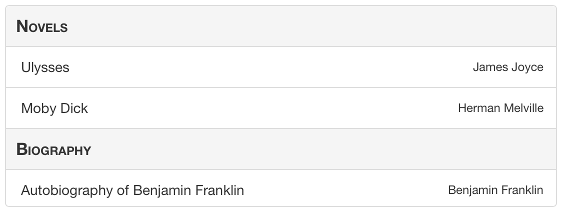
The List widget supports categorized items, that are rendered with a category header that separates
each category of items in the list. To enable this feature, use the categoryAttr property to
define the name of the item property that holds the category of the item, as in the following
example:
var list = new List();
list.categoryAttribute = "category";
list.store.add({label: "first item", category: "Category A"});
list.store.add({label: "second item", category: "Category A"});
list.store.add({label: "third item", category: "Category B"});
An alternative is to set categoryFunc to a function that extract the category from the store item,
as in the following example:
var list = new List();
list.categoryFunc = function(item, store) {
    return item.category;
});
list.store.add({label: "first item", category: "Category A"});
list.store.add({label: "second item", category: "Category A"});
list.store.add({label: "third item", category: "Category B"});
As with the rendering of items, the actual rendering of the categories in the list is delegated to a category renderer widget.
The default one is deliteful/list/CategoryRenderer, but a custom category renderer can be specified
using the categoryRenderer property of the list (see the custom renderers section for more details).
Selection support
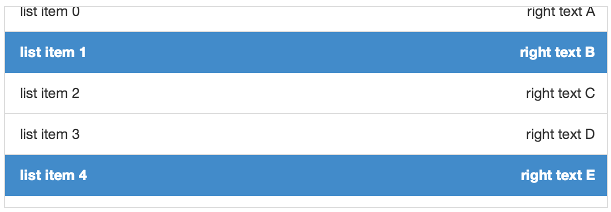
The list uses the delite/Selection mixin to provide support for selectable items. By default, items
in the list are not selectable, but you can change this behaviour using the selectionMode property
of the widget:
var list = new List();
list.selectionMode = "multiple";
When the selection mode is single, one single item can be selected in the list at any time.
When the selection mode is radio, one single item can be selected in the list at any time, but it cannot be unselected without selecting another one.
When the selection mode is multiple, more than one item can be selected in the list at any time.
When the selection mode is none, the items are not selectable.
Custom renderers
Custom item renderer
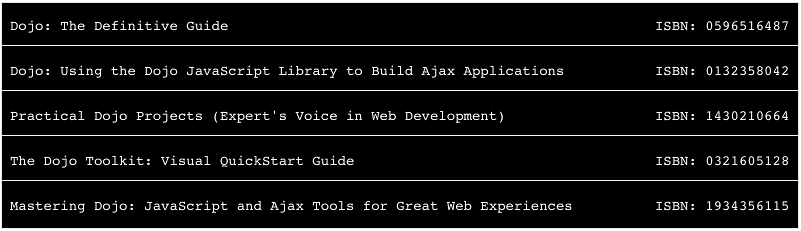
The actual rendering of the items in the list is delegated to an item renderer widget.
The default one is deliteful/list/ItemRenderer, but a custom item renderer can be specified
using the itemRenderer property of the list.
A custom item renderer must extends deliteful/list/ItemRenderer. It accesses the item to render in its item property.
It must assign to its renderNode property the node in which the item is rendered .
If the rendered item have actionable / keyboard navigable nodes, those are set using the navindex attribute, that behave simillarily to the standard tabindex attribute.
Here are is an example of custom item renderer that illustrate these concepts:
Custom category renderer
The actual rendering of the categories in the list is delegated to a category renderer widget.
The default one is deliteful/list/CategoryRenderer, but a custom category renderer can be specified
using the categoryRenderer property of the list.
A custom category renderer is similar to a custom item renderer, except that it extends deliteful/list/CategoryRenderer.
Here are is an example of custom category renderer:
Element Styling
Supported themes
This widget provides default styling for the following delite themes:
- bootstrap
CSS Classes
The List widget comes with two different styling that are applied by setting the baseClass property
to one of the following values:
"d-list": the list is displayed with an edge to edge layout. This is the defaultbaseClass;"d-rounded-list": the list has rounded corners and both a left and right margin.
Rendered Item Styling
Items are rendered inside a DIV element with the CSS class d-list-item.
By default, all items are rendered with the same height defined using the following CSS:
.d-list-item .d-list-cell {
    height: ...;
}
To define variable height for the items, use the following CSS:
.d-list-item .d-list-cell {
    height: inherit;
}
When an item has the focus, the style of the cell in which it is rendered can be defined using the css selector .d-list-item .d-list-cell:focus.
The default item renderer allow futher styling of its content using the following CSS classes:
d-list-item-icon: applied to the div before the labeld-list-item-label: applied to the labeld-list-item-right-text: applied to the right textd-list-item-right-icon: applied to the div after the right text
Rendered Category Styling
Categories are rendered inside a DIV element with the CSS class d-list-category.
By default, all categories are rendered with the same height defined using the following CSS:
.d-list-category .d-list-cell {
    height: ...;
}
To define variable height for the categories, use the following CSS:
.d-list-category .d-list-cell {
    height: inherit;
}
When a category has the focus, the style of the cell in which it is rendered can be defined using the css selector .d-list-category .d-list-cell:focus.
Selection Styling
Depending on the selectionMode property value, the following CSS classes are added to the list:
d-selectablewhenselectionModeissingle;d-multiselectablewhenselectionModeismultiple.
The CSS class d-selected is added to each list item that is currently selected.
The style of a selected item can be customized using the following css:
/* CSS selector for a selected item in a list with selectionMode = "single" */
.d-selectable .d-list-item.d-selected {
    ...
}

/* CSS selector for a selected item in a list with selectionMode = "multiple" */
.d-multiselectable .d-list-item.d-selected {
    ...
}
To illustrates these concepts, here is a sample that demonstrates how to use CSS to display a checkmark on selected items using the default item renderer:
User Interactions
Scroll
The widget uses the browser native scroll to allow the user to scroll its content: all the standard scroll interaction of the platform are supported (including using a mousewheel).
Selection
When the selection mode is "single", a click or tap on a item (or a press on the Space key
when an item has the focus) select it and de-select any previously selected item.
Clicking on a selected item has the effect of de-selecting it.
When the selection mode is "radio", a click or tap on a item (or a press on the Space key
when an item has the focus) select it and de-select any previously selected item.
Clicking on a selected item has no effect.
When the selection mode is "multiple", a click or tap on an item (or a press on the Space key when an item has
the focus) toggle its selected state.
Mixins
No Mixin is currently provided for this widget.
Element Events
Store query
When the widget has finished rendering the items queried from the store, it emits a query-success event. The renderItems property of the event
is an array of the items displayed by the widget.
If the widget fails to query its store to retrieve the items to render, it emits a query-error event (see Store capabilities for more information).
Selection
When the current selection changes, a selection-change event is emitted. Its oldValue property
contains the previous selection, and its newValue property contains the new selection.
Enterprise Use
Accessibility
The widget supports two different WAI-ARIA roles:
- grid, which is the default role
- listbox, which can be set by assigning the value
trueto theisAriaListboxproperty.
grid role
When using the default grid role, the List widget implements a single column grid navigation pattern as defined in the WAI-ARIA 1.0 Authoring Practices,
except for the selection / deselection of item, that is performed using the Space key on a focused item (no support for Ctrl+Space, Shift+Space, Control+A, Shift+Arrow and Shift+F8).
The list items can then be navigated using the UP and DOWN arrow keys. Pressing the DOWN arrow while the last item has focus will focus the first item. Pressing the UP arrow while the first item has the focus will focus the next item.
When a List item has the focus, you can press the ENTER or F2 keys to focus its first actionable node (if any), and then use the (Shift+)TAB key to move from one actionable node to the (previous)next. Pressing the ESC key will end actionable nodes navigation and resume to the previous mode.
Note that Enter and F2 only activate the Actionable Mode when using a custom renderer that render DOM nodes with a navindex attribute,
as the default renderers do not render any actionable nodes.
Pressing the PAGE UP key will focus the first item of the list, while pressing the PAGE DOWN key will focus the last one.
You can also search for items by typing their first letter on the keyboard, and the next item element which text begins with the letters will get the focus.
When the selectionMode of a List is "multiple", its aria-multiselectable attribute is set to "true".
When an item is selected in a list, its aria-selected attribute is set to the value "true".
listbox role
When using the listbox role, the List widget behave as previously described for the grid role, with the following differences:
- The list cannot have a
selectionModeof"none". If the selectionMode isnonewhen setting theisAriaListboxproperty totrue, it is automatically set to"single"; - The item and category renderers should not be actionable, and there is no way to enter actionable mode by pressing the ENTER or F2 keys;
- If the list is categorized, the category headers are not focusable.
Globalization
This widget does not provide any internationalizable bundle. The only strings displayed by the list are coming from the user data through the store from which items are retrieved.
This widget supports both left to right and right to left orientation.
Security
This widget has no specific security concern. Refer to delite/Widget and delite/StoreMap for general security advice on this base class and mixin that this widget is using.
Browser Support
This widget supports all supported browsers without any degraded behavior.